

Chiaki is a open source software client for Windows that brings PlayStation 4 and PlayStation 5 Remote Play to devices like the Legion Go.
If you’re looking for a better and more stable Playstation Remote Play option, you can check out our PSPlay guide here.
How To Setup Chiaki
- Make sure your Legion Go and PS5 are on the same network. Download the latest version of Chiaki4deck for Windows here https://github.com/streetpea/chiaki4deck/releases. Unzip the file and open up Chiaki.

- Make sure your Legion Go and PS5 are on the same network. Download the latest version of Chiaki4deck for Windows here https://github.com/streetpea/chiaki4deck/releases. Unzip the file and open up Chiaki.

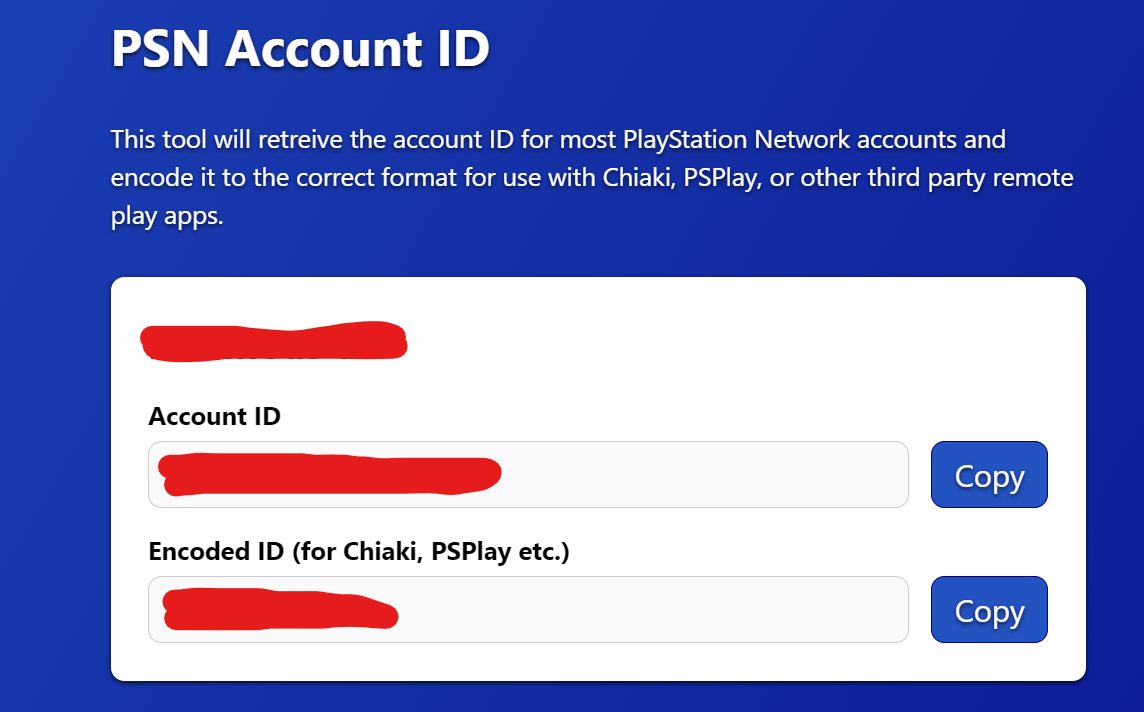
- Now you want go to https://psn.flipscreen.games/ Enter your Playstation username and it will give you your Account and Encoded ID.

- Copy your Encoded ID and enter it inside Chiaki where its
PSN Account-ID (base64).

- Turn on your Playstation 5, head to Settings – System – Remote Play and then enable it. Then you want to click Link Device.
- Input the code into Chiaki where it says
PINunder your Account-ID and click Register. - You should be connected now.
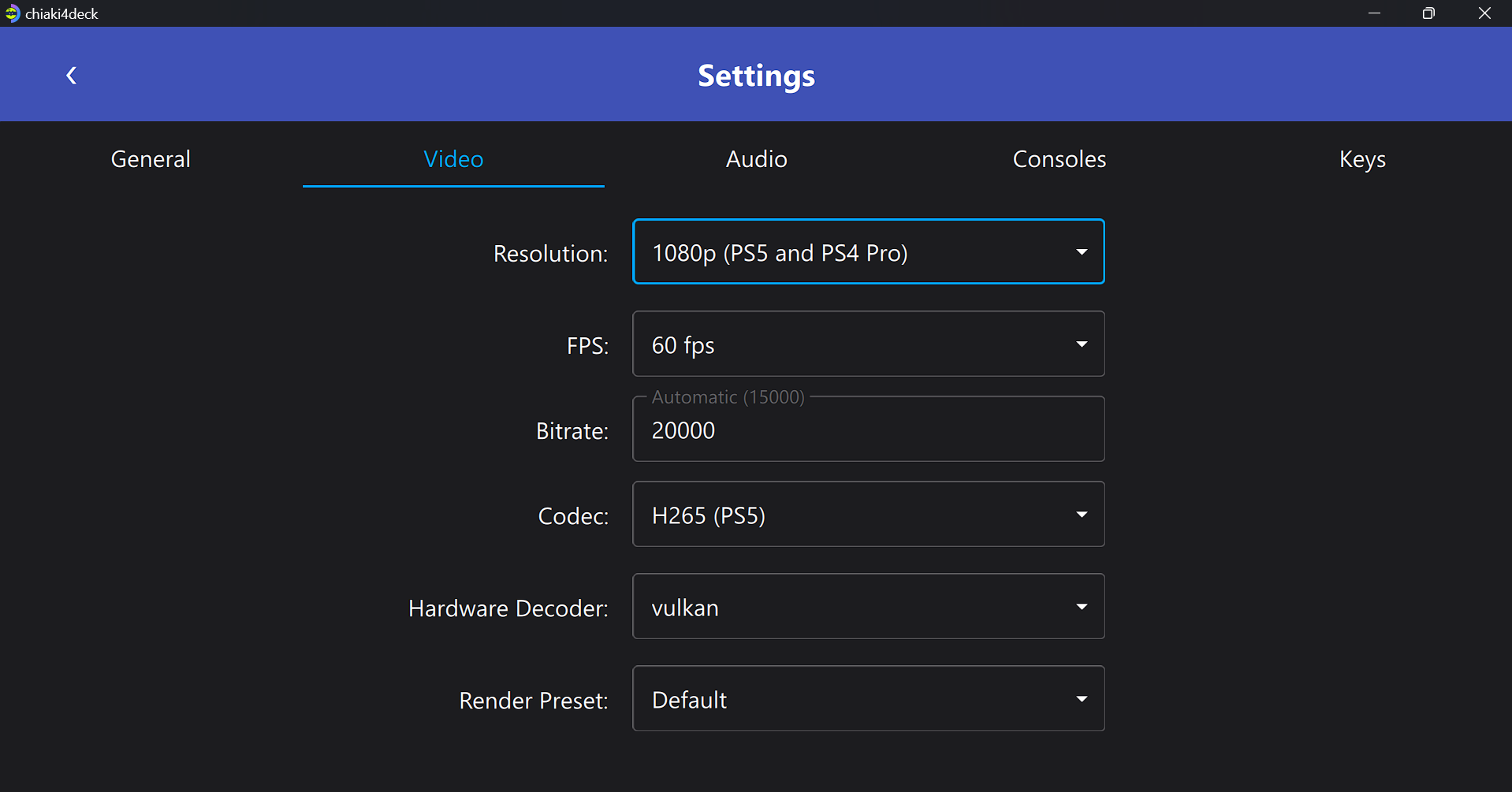
- Click the settings button at the top right and enter your settings. You can adjust the bitrate to your liking, it will depend on you internet speed.

general 
video 
audio - Double click your Playstation or Press the Y button to begin your Remote Play session.

- Now you want go to https://psn.flipscreen.games/ Enter your Playstation username and it will give you your Account and Encoded ID.




- To make your game fullscreen, double tap your screen.
- I use third party app Handheld Companion to map the escape key and T key to one of the back buttons on my Legion Go so I can accesss the Playstation 5 home screen and use the touch pad button.